If you've read my recent post about going full circle back to the terminal, you know I've been living in Claude Code, Neovim, and tmux for everything. My entire development workflow happens inside a terminal. It's fast, focused, and powerful.
But there was one glaring problem I kept running into. A problem so annoying that it finally pushed me to build something new.
I couldn't show Claude Code what I was looking at.
The Problem: Screenshots in a Terminal World
Here's the scenario. I'm deep in a Claude Code session over SSH inside tmux. I'm staring at a UI bug, a weird layout issue, an error dialog — something visual that I need Claude to see and help me fix. In any other context, I'd just take a screenshot and paste it. But in a terminal? That doesn't work.
I'd been a happy CleanShot user for years. It's a fantastic tool. But when I tried to use it with Claude Code, I hit a wall. CleanShot copies a link to their landing page — a nicely designed HTML page with your screenshot embedded in it. Great for sharing with humans. Completely useless for an AI agent that needs to actually see the image.
Claude Code can't do anything useful with an HTML landing page URL. It needs a direct link to an image file. And in a terminal session, you can't just paste an image from your clipboard the way you can in a browser-based chat.
I needed pass by reference, not pass by copy. A URL that points directly to the image — not a wrapper page, not clipboard data, just the raw image.
This is a subtle but fundamental shift in how we share visual information with AI. When your AI assistant lives in a browser, you can drag and drop images, paste from clipboard, upload files. When your AI assistant lives in a terminal over SSH, none of that works. You need a URL. A real one.
What I Actually Needed
The requirements were simple:
Capture a screen region quickly
One keyboard shortcut. Select a region. Done. No fiddling with windows or menus.
Upload to somewhere I control
My own S3 bucket. No third-party landing pages. No dependency on someone else's service staying online.
Get a direct image URL
A pre-signed S3 URL that points directly to the PNG file. Not an HTML page. Not a redirect. The actual image.
Copy it to my clipboard automatically
So I can immediately paste it into my Claude Code session. Cmd+Shift+6, then paste. That's the whole workflow.
That's it. Capture, upload, URL on clipboard. Three steps that should take under two seconds.
So I Vibe Coded It
Let me be completely transparent about how this app was built: I vibe coded the entire thing.
For those unfamiliar, "vibe coding" is when you describe what you want to an AI and let it write the code. You're steering, reviewing, and testing — but the AI is doing the heavy lifting on implementation. You're the architect; the AI is the builder.
I sat down with Claude Code and described what I needed. A macOS menu bar app. Swift. No external dependencies. Global hotkey. S3 upload with pre-signed URLs. Keychain storage for credentials. The works.
And here's the thing — it's a real app. Not a script. Not a hack. A proper macOS application with:
- Pure Swift AWS Signature V4 implementation — no AWS SDK dependency, no external packages at all
- Interactive region selection with a click-drag overlay across all connected displays
- Keychain integration for securely storing AWS credentials
- A settings UI built in SwiftUI with connection testing
- Launch at login via macOS native login items
- Drag-and-drop upload — drag any image onto the menu bar icon
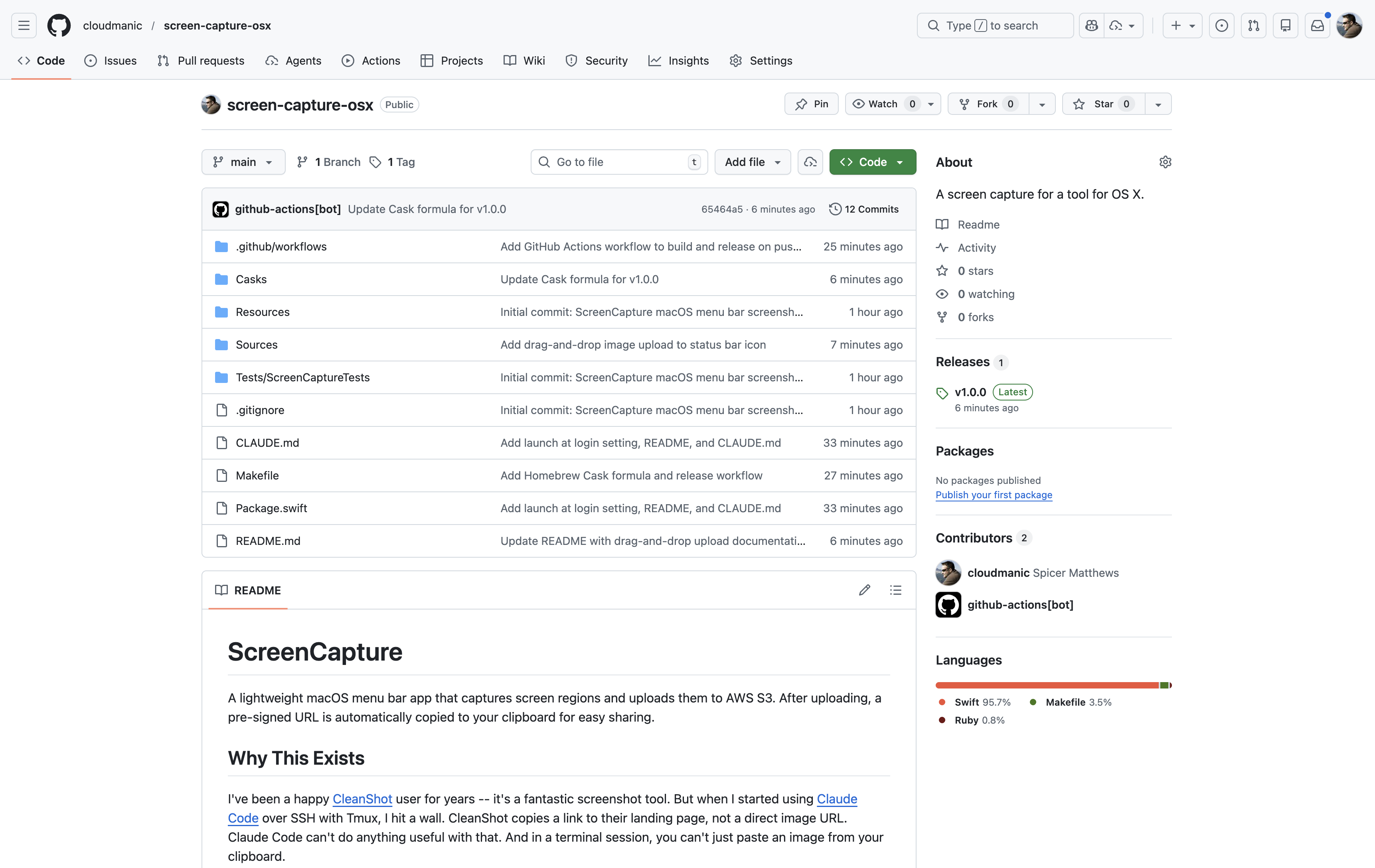
- Homebrew distribution with a proper cask formula
Could I have built all of this from scratch, writing every line myself? Sure. Eventually. But it would have taken days of reading Apple's documentation, fighting with Swift's AWS signing requirements, and debugging overlay windows across multiple displays. Instead, I had a working app in a fraction of the time.
Vibe coding isn't about being lazy. It's about recognizing that the value isn't in typing the code — it's in knowing what needs to exist.
The Irony Isn't Lost on Me
There's a delicious irony here that I want to sit with for a moment.
I built a tool to help me share screenshots with an AI coding assistant... using that same AI coding assistant. The tool exists because Claude Code needed a way to see my screen, and Claude Code is the one that built it. The snake eating its own tail, but productively.
This is what the AI-native development loop actually looks like in practice. You're using AI to build tools that make AI more useful, which in turn lets you build better tools faster. It's a flywheel. Every tool I build with Claude Code makes the next thing I build with Claude Code easier and faster.
How It Works
The app lives in your menu bar — just a small camera icon. No dock icon, no windows cluttering your desktop. It stays completely out of the way until you need it.
1. Capture
Press Cmd+Shift+6. A translucent overlay appears across all displays. Click and drag to select a region. Dimensions show in real-time.
2. Upload
The selected region is captured and uploaded to your S3 bucket. A progress HUD tracks the upload. Takes about a second.
3. Paste
A pre-signed URL is copied to your clipboard with a sound notification. Paste it anywhere — Claude Code, Slack, email, wherever.
You can also drag any image file onto the menu bar icon to upload it. Same flow — it goes to S3 and the URL hits your clipboard. Supports PNG, JPG, GIF, WebP, TIFF, BMP, and HEIC.
The Real Reason I Built This
On the surface, this is a screenshot tool. But the real reason it exists is deeper than that.
When you commit to a terminal-first workflow with Claude Code over SSH, you discover that the entire ecosystem of desktop tools was built around assumptions that no longer hold. The assumption that you're sitting in front of the machine. The assumption that you have a GUI clipboard. The assumption that sharing visual information means dragging and dropping files between windows.
SSH breaks all of those assumptions. And when your AI coding assistant lives in an SSH session inside tmux, you need tools that work the way terminals work — through text, through URLs, through references to things rather than copies of things.
The old way
Take screenshot. It's on your clipboard. Paste it into a browser-based AI chat. The image data is copied into the conversation.
The terminal way
Take screenshot. It uploads to S3. URL is on your clipboard. Paste the URL into Claude Code. The AI fetches the image by reference.
Pass by reference instead of pass by copy. It's a small shift in mechanics, but it unlocks an entirely different workflow. And once it works, you wonder why screenshots ever needed to be anything other than URLs in the first place.
What Vibe Coding Taught Me (Again)
Every time I vibe code a project, I learn the same lesson: the hard part was never the code. The hard part was knowing what to build and why.
I didn't need to know how AWS Signature V4 signing works at the byte level. I needed to know that I needed it. I didn't need to know how to create a transparent overlay window on macOS. I needed to know that the interaction model required one. I didn't need to manually implement every Swift protocol. I needed to understand the architecture — what talks to what, what gets stored where, what the user experience should feel like.
The code is the easy part now. The thinking is still hard. And I don't think AI changes that anytime soon.
AI can write the code. But someone still has to feel the friction, identify the gap, and decide that a tool needs to exist. That's the job now.
This screenshot tool exists because I sat in a terminal for weeks, frustrated that I couldn't show Claude Code what was on my screen. No amount of AI-generated code would have created this tool on its own. The tool needed someone to live the problem first.
Install It
The app is open source and available on GitHub: github.com/cloudmanic/screen-capture-osx. If you're on macOS, installation is one line:
$ brew tap cloudmanic/screen-capture-osx https://github.com/cloudmanic/screen-capture-osx
$ brew install --cask screen-capture
You'll need an AWS S3 bucket with valid credentials. Open the settings from the menu bar icon, plug in your AWS access key, secret key, bucket name, and region, hit Test Connection, and you're good to go.
The app requires macOS 13.0 (Ventura) or later and will prompt for Screen Recording permission on first launch.
A Broader Point
We're entering an era where the friction you feel in your workflow is the blueprint for the next tool you should build. The gap between "this annoys me" and "I shipped a solution" has collapsed to hours instead of weeks. Vibe coding makes the build phase almost trivial. What remains is the insight — the lived experience of a broken workflow, the clarity to see what's missing, and the conviction to go build it.
For me, the missing piece was a direct image URL on my clipboard after a screenshot. For you, it might be something completely different. But if you're feeling friction in your development workflow in 2026, the answer isn't to live with it. The answer is to sit down with Claude Code and build the tool that makes the friction go away.
Feel the friction. Identify the gap. Vibe code the solution.
That's the new loop. And it moves fast.
If you're using Claude Code over SSH and fighting the same screenshot problem, give ScreenCapture a try. And if you're not using Claude Code in the terminal yet — well, you might want to read that other post first.